Image Editing
Smart Cutout
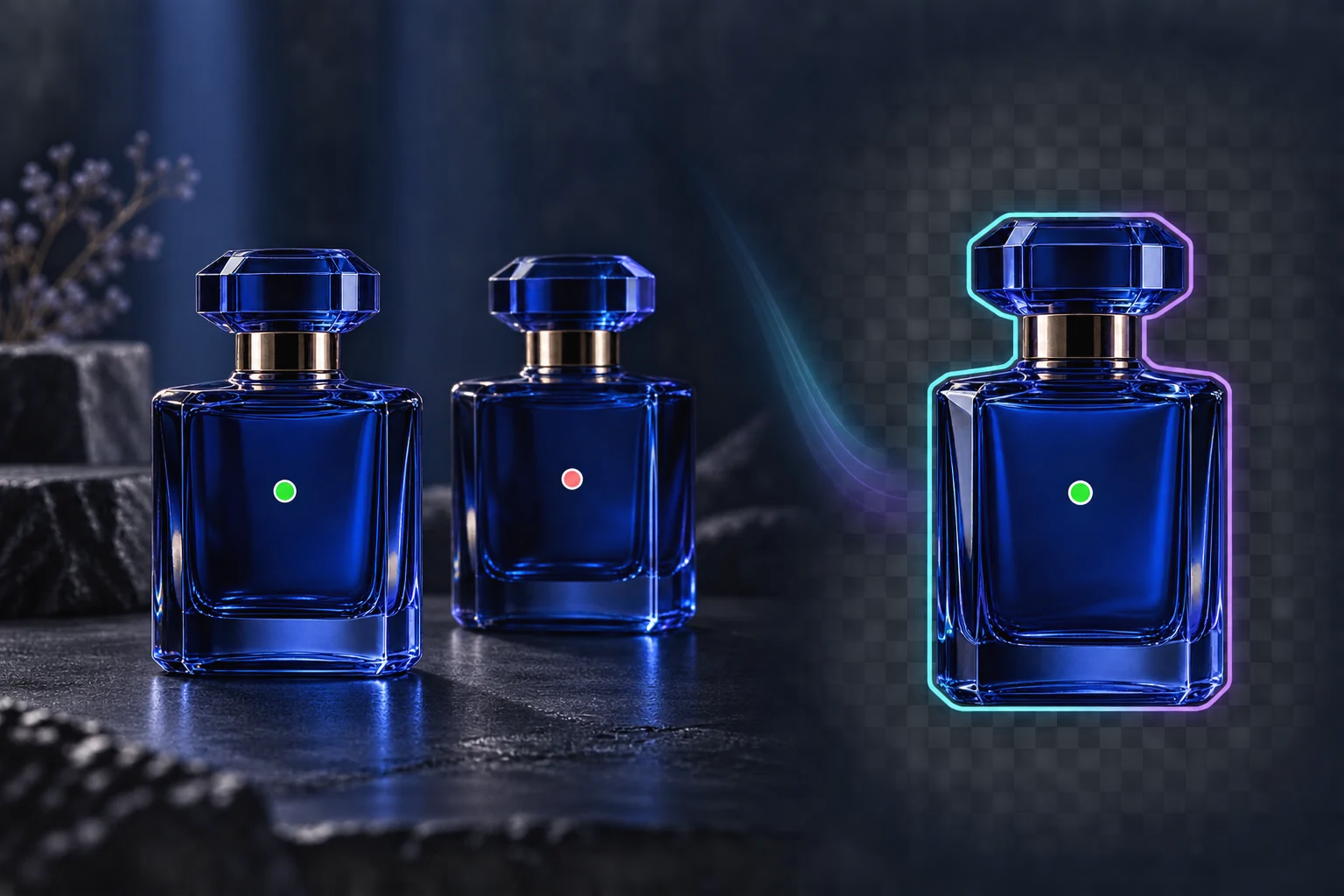
Choose the exact subject you want to keep
Click the subject to keep, mark areas to exclude, and refine the selection with a brush. Smart Cutout runs in your browser and exports a transparent PNG or a reusable selection mask.
Pick one subject among manyRefine before exportingDownload a real transparent PNG
Fähigkeits-Snapshot
2
keep and exclude point types
PNG
transparent image export
local
image processing in your browser
Smart Cutout in Aktion
Ein 27-sekündiger Überblick über Workflow, zentrale Vorteile und Ergebnisse.
Kernvorteile
Praktischer Wert, abgebildet auf reale Produktionsabläufe.
Vorteil
01
Pick one subject among many
Add a keep point on the object you want and exclude points on nearby objects or background areas. The selection updates as you guide it.
Vorteil
02
Refine before exporting
Use the brush, eraser, lasso, feather, and expand controls to correct the mask, then inspect it against the source image.
Vorteil
03
Download a real transparent PNG
The selected pixels are composited with an alpha channel in your browser. Download the cutout or export the mask for another editing step.
Empfohlener Workflow
Ein einfacher dreistufiger Weg vom Quellmaterial zu einem wiederverwendbaren Ergebnis.
Schritt 1
Choose an image
Open a PNG, JPEG, or WebP image from your device. The image stays local while the browser loads the cutout model.
1
Schritt 2
Guide the selection
Click the subject to keep it. Right-click or switch to Exclude to mark background areas, then refine with the manual tools.
2
Schritt 3
Export the result
Preview the selected area and download a transparent PNG or a separate selection mask.
3
Häufig gestellte Fragen
Does my image leave my device?
The standalone Smart Cutout tool processes the selected image in your browser and downloads the result locally. Opening the separate Image Editor follows its own asset and generation workflow.
Can I select one of two similar products?
Yes. Add a keep point on the desired product and exclude points on the other one. Results depend on image detail, so use the brush for final corrections.
Does it work on every browser and every edge?
The tool needs browser support for WebAssembly and OffscreenCanvas and downloads its model on first use. Hair, translucent materials, and very complex edges may need manual refinement.
Nächster Schritt
Bereit, diese Funktion in der Produktion zu verwenden?
Öffnen Sie das Tool mit einem echten Bild, vergleichen Sie die Ergebnisse und behalten Sie die funktionierende Version.